
How to Buy an Item
Buying on BuySellBid is straightforward. This guide walks you through the steps from finding an item to completing payment, whether you are using standard auctions or fixed-price listings.
1. Sign in to your account
To buy anything on BuySellBid you need an active member account.
- Click Sign In and log in with your username or email and password.
- Check that your Personal Information, billing address and primary currency are correct in the Members Area.
- If you are new, create an account first and verify your email address.
2. Find the item you want
You can search across the site or browse by category:
- Use the Search box at the top of the page and choose a category filter if needed.
- Or, click Buy and browse through the main categories until you find a listing.
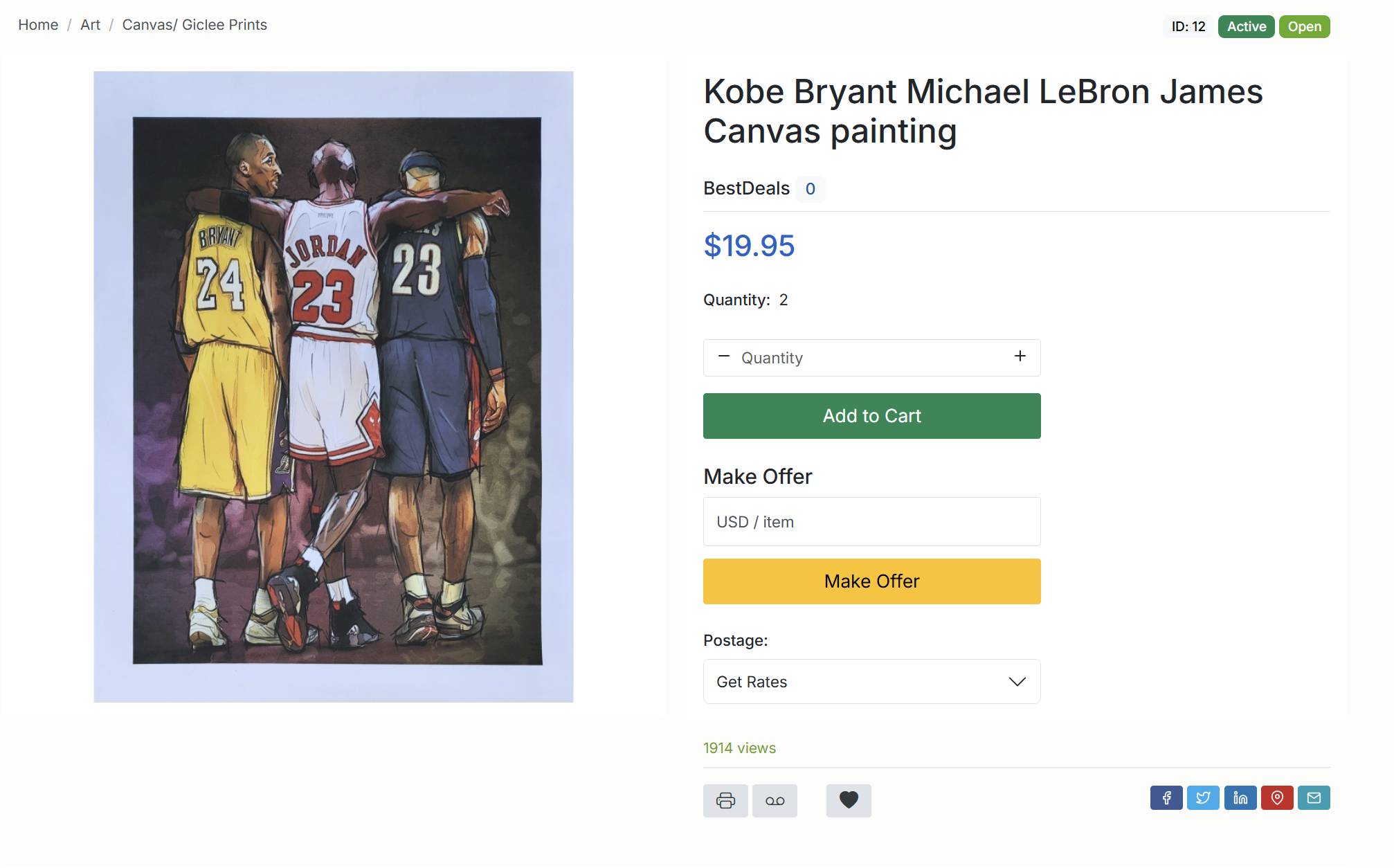
- Open the item to see photos, description, shipping options and the seller’s feedback.
3. Check the listing details
Before committing to buy, review the important information on the listing page:
- Price type – fixed price, auction bidding, or both (Buy Out + bidding).
- Quantity available – how many units you can purchase.
- Postage / shipping – methods offered, costs, and locations served.
- Payment options – which payment gateways or methods the seller accepts.
- Return policy – if the seller allows returns and under what conditions.
4. Add the item to your cart or use Buy Out
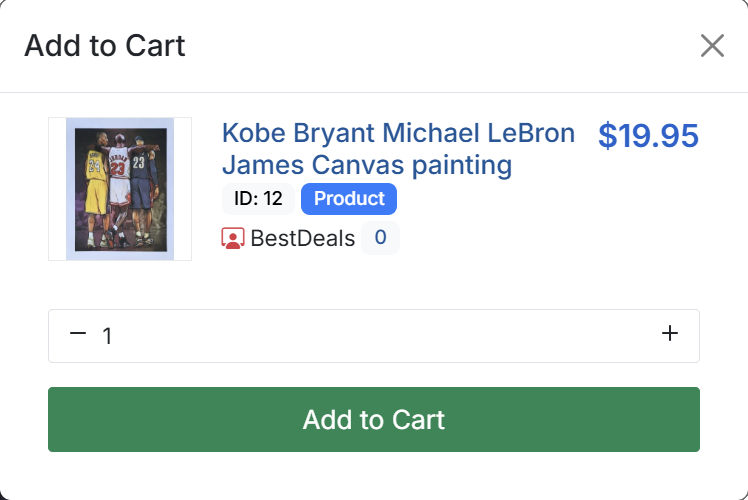
For most product-style listings you will see an Add to Cart or Buy Out button.
- Select the quantity you want and any options (size, colour, variation).
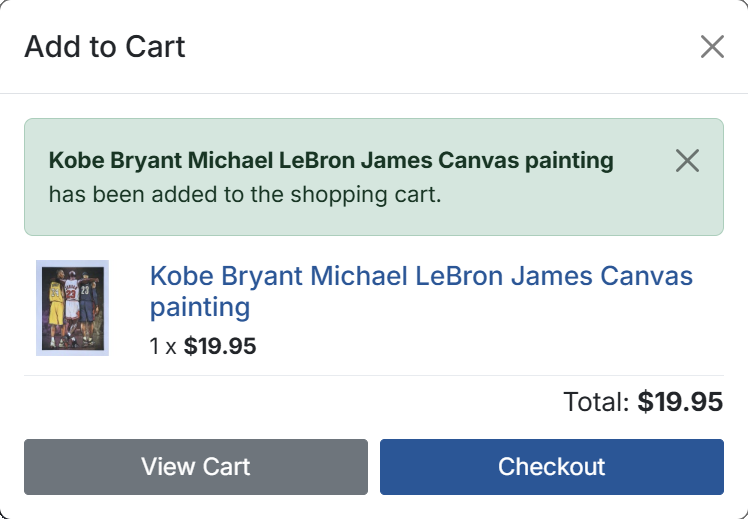
- Click Add to Cart to keep shopping, or View Cart to move straight to checkout.
- On single-item buy-out listings you can click Buy Out to purchase immediately without using the shopping cart.
5. Placing a bid on auction items
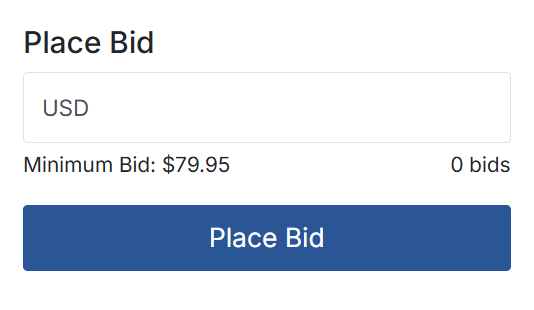
When an item is in auction format, you will see a bidding box instead of a fixed “Add to Cart” price.
- Enter the amount you’re willing to pay in the Bid field.
- You can place a simple bid, or a higher maximum (proxy) bid so the system automatically bids for you up to that limit.
- Confirm your bid on the next screen. You will see if you are the current high bidder or if you need to increase your bid.
- If you win when the auction ends, the item will move into your Won Items and an invoice will be created so you can pay.
6. Review your cart and proceed to checkout
When you are ready to buy, open your cart from the header.
- Check the list of items, quantities and prices.
- Remove anything you no longer want, or update quantities if needed.
- Click Checkout to move to the secure checkout page.
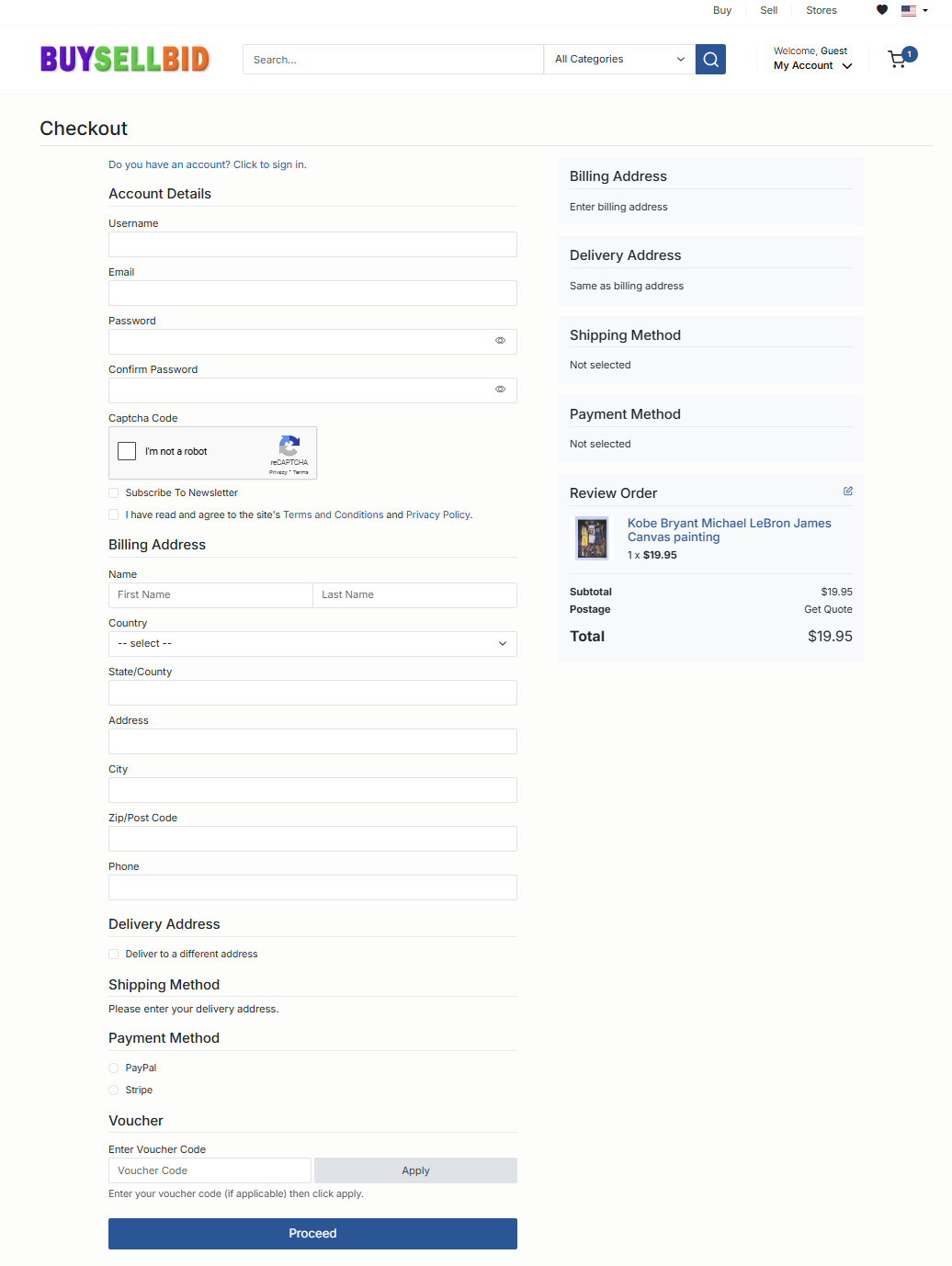
7. Complete the checkout steps
The checkout screen will guide you through a few quick choices:
- Select your billing address (and add a new one if required).
- Confirm or edit your delivery address.
- Choose a shipping method from the options provided by the seller.
- Apply insurance or a voucher code if available.
- Pick your payment method (for example: credit card via gateway, PayPal, etc.).
8. Pay and confirm your order
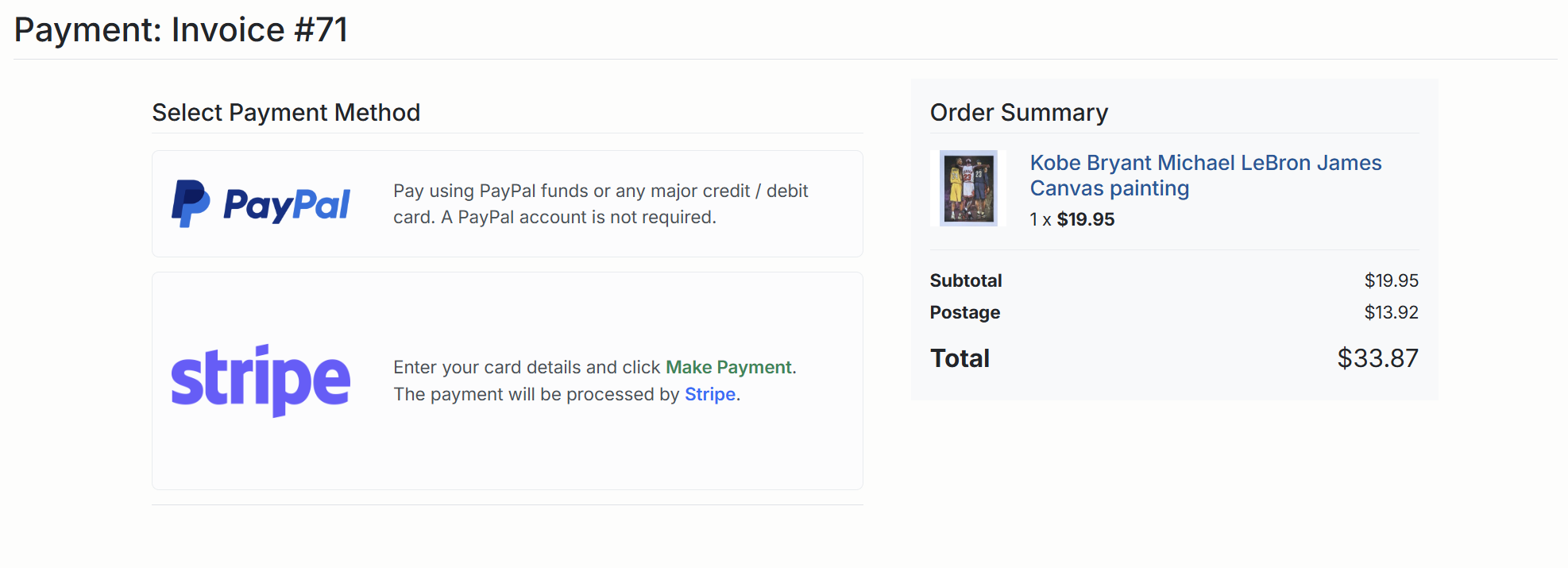
After reviewing the summary, click Make Payment to be redirected to the payment gateway or on-site payment form.
- Complete the payment steps as instructed by your chosen payment provider.
- When payment is successful you will see a confirmation screen and your order or invoice will show as Paid.
- You will also receive a confirmation email with the order details.
9. Track your purchase
After buying, you can follow your order from the Members Area:
- Use the Buying section to see current purchases and won items.
- Check for tracking numbers or shipping updates once the seller dispatches your item.
- When the transaction is complete, leave feedback to rate your experience with the seller.
If at any point you are unsure about a step, use the Contact Seller option on the listing page or reach out to BuySellBid support for help before you pay.