
How to Create an Auction
This guide walks you through creating a new auction listing on BuySellBid so you can start receiving bids and selling your items safely and efficiently.
1. Go to the Sell Section
- Sign in to your BuySellBid account.
- In the left menu, click Selling.
- Select Create Listing (or a similar option provided on the site).
You will be taken to the listing form where you can choose the listing format and set up your auction details.
2. Choose Listing Type: Auction
In the listing format section, select Auction as the listing type. On some pages this may be labelled as Standard Auction or Timed Auction.
If available, you can also choose options such as:
- Buy Out – allows buyers to purchase the item immediately at a fixed price.
- Reserve Price – ensures the item will not sell below a minimum amount.
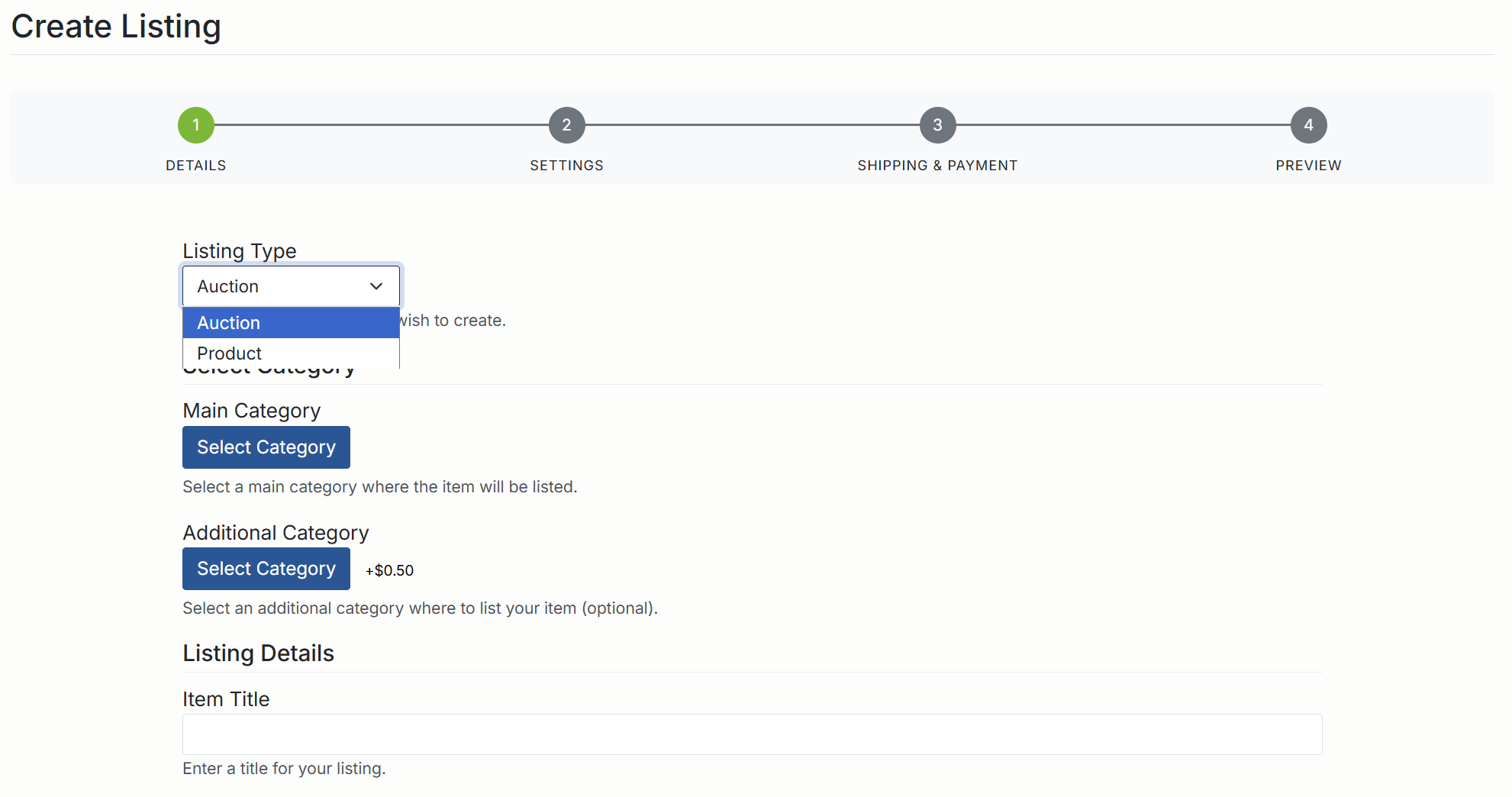
3. Enter Basic Listing Details
Fill in the main information about your item:
- Category – select the most accurate category so buyers can find your item easily.
- Title – write a clear, descriptive title including brand, model, size, or key features.
- Description – provide detailed information about the item’s condition, specs, and what is included.
- Photos – upload clear images from multiple angles. Good photos can increase bids and final price.
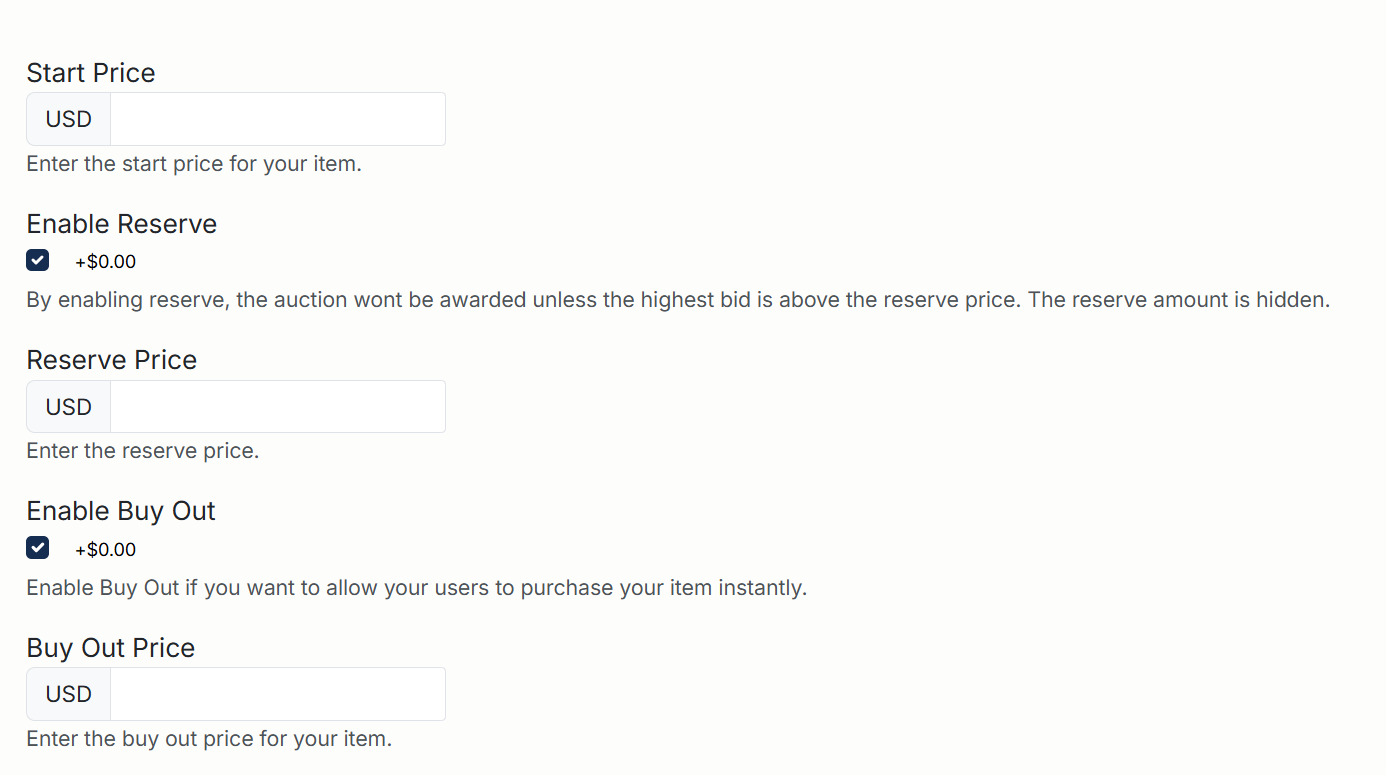
4. Set Auction Pricing
Configure how bidding will work for your auction:
- Starting Bid – the minimum amount at which bidding can begin. Lower starting bids often attract more interest.
- Reserve Price (optional) – the minimum price you are willing to accept. If the final bid does not reach this amount, the item will not be sold.
- Buy Out Price (optional) – a fixed price that allows a buyer to end the auction immediately by purchasing the item outright.
5. Choose Auction Duration and Schedule
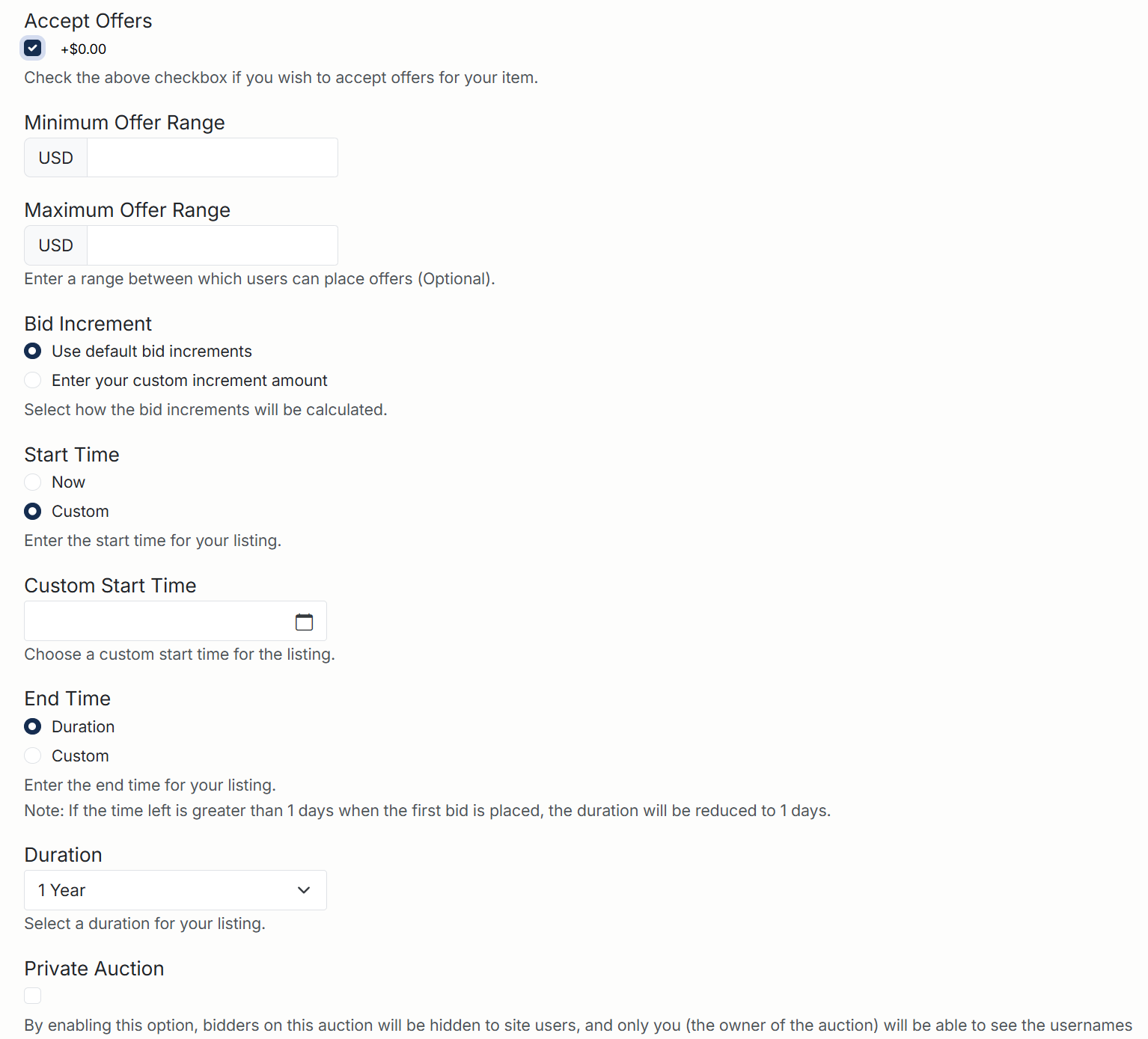
Set how long your auction will run and when it should start:
- Duration – select the number of days (for example, 1, 3, 5, 7, or 10 days).
- Start Date/Time – choose Start Now to launch immediately or set a specific date and time to schedule the auction for later.
Consider when your buyers are most active so your auction ends at a time that maximizes bidding activity.
6. Shipping, Payment, and Returns
Complete the shipping and payment sections carefully:
- Shipping Methods – select available shipping options (flat rate, calculated shipping, local pickup, etc.).
- Shipping Costs – set your rates clearly so buyers know the total price.
- Payment Methods – choose how you will be paid (PayPal, Stripe, bank transfer, etc.). These should match the methods configured in your Account Settings.
- Returns Policy – specify whether you accept returns and under what conditions.

7. Listing Enhancements (Optional)
Depending on the site configuration, you may see additional options that can help your auction stand out:
- Bold listing or Highlighted
- Homepage featured or Category featured
- Subtitle or extra promotional text
These options may have extra fees, which are usually displayed next to each feature.
8. Preview and Confirm Your Auction
- Use the Preview button (if available) to check your listing as buyers will see it.
- Verify the title, description, pricing, photos, and shipping details.
- Review any listing or insertion fees shown at the bottom of the page.
- Click List Item or Submit Auction to make your auction live.
9. Managing Your Auction
After your auction is created, you can manage it from the Selling section:
- View active auctions and current bids.
- Edit certain details (where allowed) such as description or photos.
- Answer questions from potential buyers.
- Cancel the auction if necessary, subject to site rules.
10. When the Auction Ends
Once the auction closes, you will receive a notification if there is a winning bidder. You should then:
- Confirm payment has been received.
- Pack and ship the item promptly using the agreed shipping method.
- Mark the item as shipped and provide tracking information, if available.
- Leave feedback for the buyer when the transaction is complete.
If you need to list a similar item again, you can use the Relist option (where available) to quickly create a new auction using the same settings.
If you have questions or experience any issues while creating your auction, please contact BuySellBid support and include the listing ID so we can assist you faster.