
Email Notifications
Email notifications keep you updated on what is happening with your BuySellBid account – bids, offers, listings, messages and more. This page explains each notification type and how to choose the settings that work best for you.
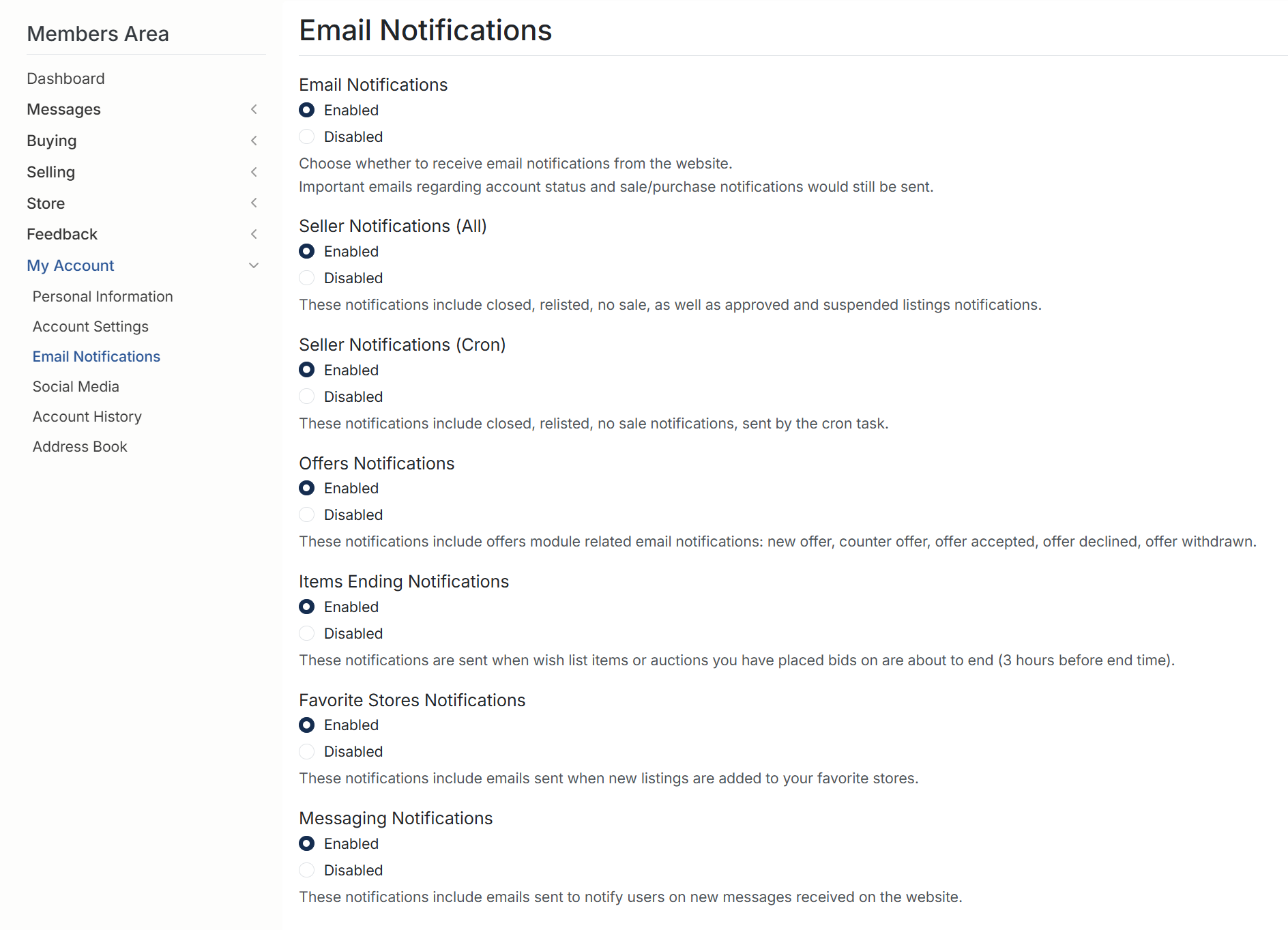
Accessing Your Email Notification Settings
To manage your preferences:
- Sign in to your BuySellBid account.
- Go to Members Area > My Account.
- Select Email Notifications from the left-hand menu.
You will see a list of notification groups with an Enabled or Disabled option for each. Changes are saved when you click the corresponding Save or Update button on the page.
Global Email Notifications
Email Notifications (On/Off)
The first setting controls whether you receive general email communication from the website.
- Enabled – you receive all emails based on the options you select in the sections below.
- Disabled – you will not receive most site emails. Important system emails about account status and purchases may still be sent when required.
If you are missing messages from BuySellBid, first make sure this master setting is set to Enabled.
Seller Notifications
Seller Notifications (All)
This option covers most day-to-day seller activity, including:
- Listings that have closed, relisted or ended with no sale.
- Listings that have been approved or suspended by the site.
- Important status updates related to items you have for sale.
Keep this enabled if you actively sell on BuySellBid so you can react quickly when an item sells or needs attention.
Seller Notifications (Cron)
Cron notifications are batch emails generated by scheduled system tasks. They can include summaries of recent listing changes and other background events the site processes automatically.
If you prefer fewer, more consolidated emails rather than individual alerts, leaving this enabled can be helpful.
Buying and Offers
Offers Notifications
Offer notifications apply when you use the Offers module. With this setting enabled you can receive emails when:
- You receive a new offer.
- A counter offer is made.
- An offer is accepted, declined or withdrawn.
This is recommended for both buyers and sellers who use offers so that no negotiation is missed.
Items Ending Notifications
These emails are sent when:
- An item on your wish list is about to end, or
- An auction you have bid on is close to finishing (typically a few hours before the end time).
Enabling this setting gives you a reminder to place a final bid or check the listing before it ends.
Favorite Stores Notifications
When this option is enabled, you receive an email when new listings are added to the stores you have marked as favorites.
It is a good idea to keep this on if you follow specific sellers or brands and do not want to miss new stock.
Messaging Notifications
Messaging notifications are sent when you receive a new message through the website, for example:
- Questions from buyers or sellers.
- Replies to conversations you have started.
Keeping this enabled ensures you can respond promptly, even when you are not logged in to the site.
Recommended Default Settings
If you are unsure where to start, we suggest:
- Email Notifications: Enabled
- Seller Notifications (All): Enabled if you sell
- Seller Notifications (Cron): Enabled
- Offers Notifications: Enabled
- Items Ending Notifications: Enabled
- Favorite Stores Notifications: Enabled if you use favorites
- Messaging Notifications: Enabled
You can always return to this page and adjust any setting as your buying and selling habits change.
Troubleshooting Missing Emails
If you believe you should be receiving emails but are not:
- Check that Email Notifications is set to Enabled.
- Confirm the specific notification type (for example, Messaging Notifications) is also enabled.
- Look in your email account’s spam or junk folder and mark BuySellBid messages as “Not spam”.
- Add the site’s email address to your contacts or safe-sender list.
- Verify that your account email address is typed correctly under Personal Information.
If problems continue after checking these steps, contact support using the Help link in the footer so our team can investigate further.