
Global Settings
The Global Settings section allows sellers to control how their listings behave, what information is shown to buyers, and how invoices are displayed. These settings apply to all current and future listings unless a specific listing overrides them. This area is essential for customizing your selling experience, managing visibility, and maintaining consistent branding on BuySellBid.com.
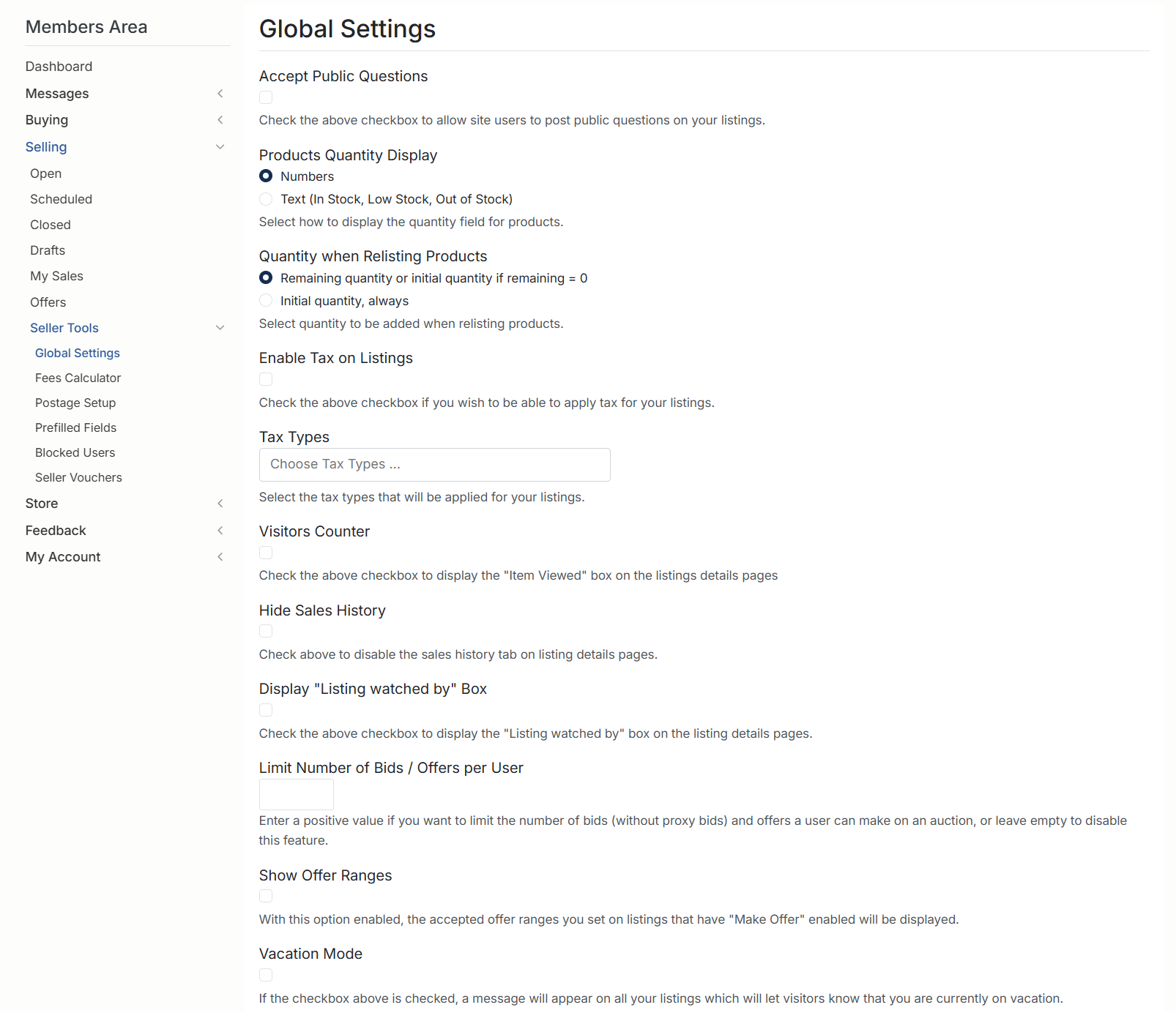
1. Accept Public Questions
Enable this option to allow site users to post public questions on your listings. These questions appear on the listing page where other buyers can see them. This helps improve transparency and reduces repeated inquiries.
2. Products Quantity Display
Choose how the quantity of your products is displayed:
Numbers
Shows the exact available quantity (e.g., “12 available”).
Text (In Stock, Low Stock, Out of Stock)
Displays general stock levels instead of exact quantities. Useful if you prefer not to show exact counts to buyers.
3. Quantity When Relisting Products
Choose how quantity is handled when relisting items:
Remaining Quantity / Initial Quantity if Remaining = 0
Keeps the remaining amount unless stock hits zero, then resets.
Initial Quantity, Always
Automatically resets quantity to the original stock level each time the item is relisted.
4. Enable Tax on Listings
Enable this option if you wish to apply tax to your listings. When active, you can select tax types that will be added to applicable listings.
5. Tax Types
Choose the tax types you want to apply. These taxes will display during checkout when buyers purchase your items. This is especially useful for sellers operating in regions with mandatory sales tax.
6. Visitors Counter
When enabled, a small box will appear on your listing pages showing how many times the item has been viewed. This is useful for tracking buyer interest and assessing listing performance.
7. Hide Sales History
Enable this option to hide the sales history tab from listing pages. Useful for sellers who prefer to keep past sales private or avoid showing discounts or quantities sold.
8. Display “Listing Watched By” Box
Enable this option to show the number of users currently watching the listing. This can help build urgency and increase conversions by demonstrating buyer interest.
9. Limit Number of Bids / Offers per User
Enter a positive number to restrict how many bids (excluding proxy bids) or offers a buyer can place on your auction listings. Leave this field blank to allow unlimited bids or offers.
This feature helps prevent spam or repeated low-value offers.
10. Show Offer Ranges
When enabled, buyers will see the minimum accepted offer range when submitting an offer on listings that support the “Make Offer” feature. This helps guide buyers toward reasonable, acceptable offer values.
11. Vacation Mode
When vacation mode is activated, a notice will appear on all your listings letting visitors know that you are currently away. This helps set realistic expectations for shipping times and message response delays.
Invoice Settings
Below the listing settings, you can customize how your invoices appear to buyers. These options help you create a more professional and branded presentation.

12. Invoice Logo
Upload a custom logo to appear at the top of your invoices. This enhances branding and gives your invoices a polished look.
13. Invoice Address
Enter the address that will appear on your sales invoices. Leave this field empty to use your primary account address automatically.
14. Invoice Header
Add optional HTML content to appear at the top of your invoices. This may include your business details, return policies, or a thank-you message.
15. Invoice Footer
Add optional HTML content to appear at the bottom of your invoices. Great for including disclaimers, tax information, or customer support details.
Once you have finished adjusting your settings, click Submit to apply all changes.