
How to Open a Store
To sell on BuySellBig.com, you must first open a store. A store gives you a branded space where buyers can browse all your listings, view your categories, and learn more about your business. It is ideal for sellers who list regularly or want to build a recognizable presence on the platform.
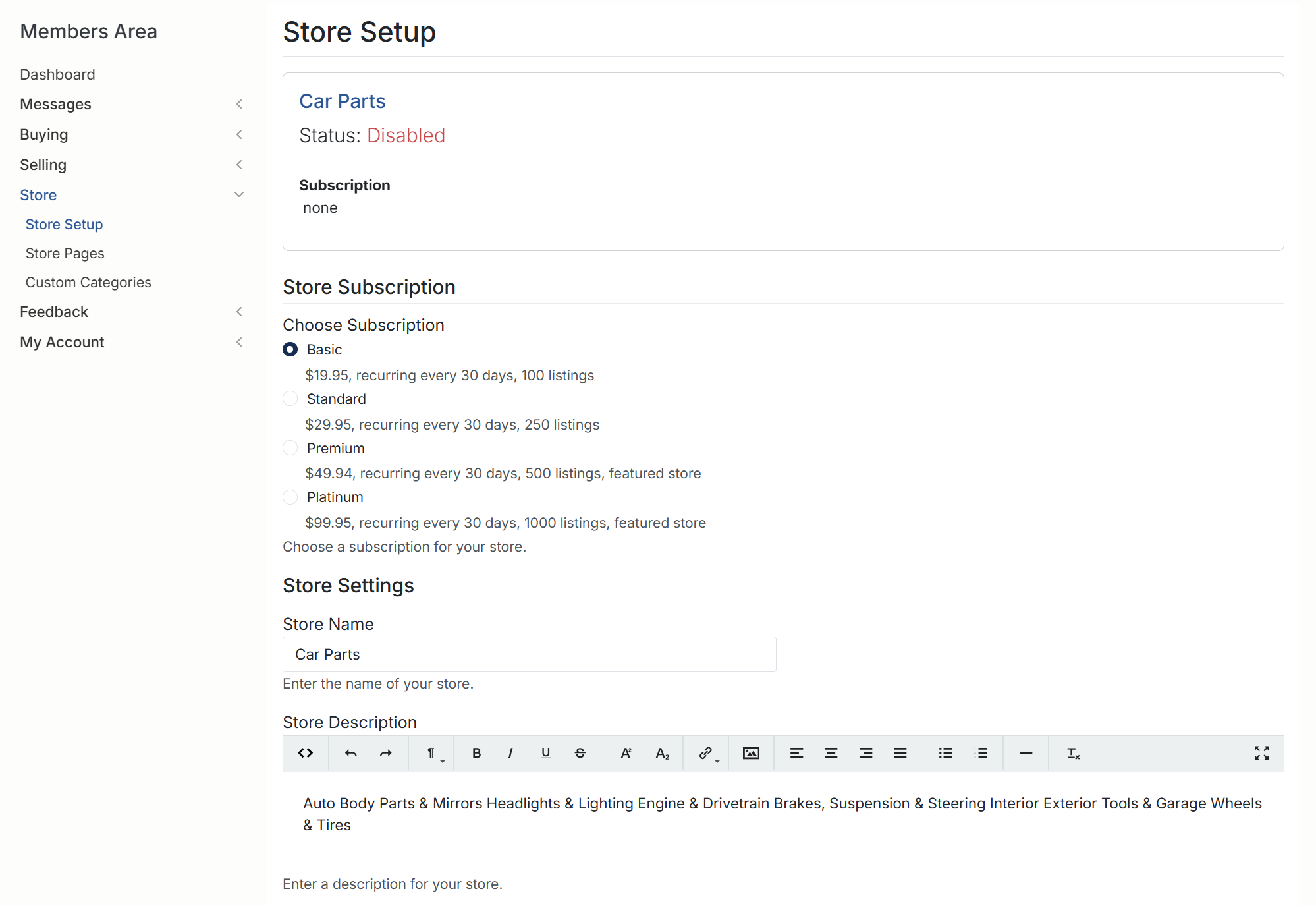
1. Accessing Store Setup
- Sign in to your BuySellBid account.
- From the left menu, click Store.
- Select Store Setup.
If you haven’t created a store yet, this page will show your store name, its current status, and all available subscription levels.
2. Choosing a Store Subscription
Before your store can go live, you must choose a subscription plan. Available options may include:
- Basic – A fixed number of listings and a recurring 30-day subscription fee.
- Standard – More listings per cycle and additional seller features.
- Premium – Higher listing limits with enhanced store visibility.
- Platinum – Maximum listing limits with featured placement options.
Each plan displays the price, billing cycle, and listing capacity. Choose the plan that best matches your business size and goals.
3. Entering Store Details
After selecting a subscription, fill out the store settings:
- Store Name – This is your official store name shown to buyers. Choose something professional and descriptive.
- Store Description – Describe your business, what you sell, and what makes your store unique. You may include product categories, specialties, or a welcome message.
These details appear publicly on your store's main page.
4. Saving Your Store Settings
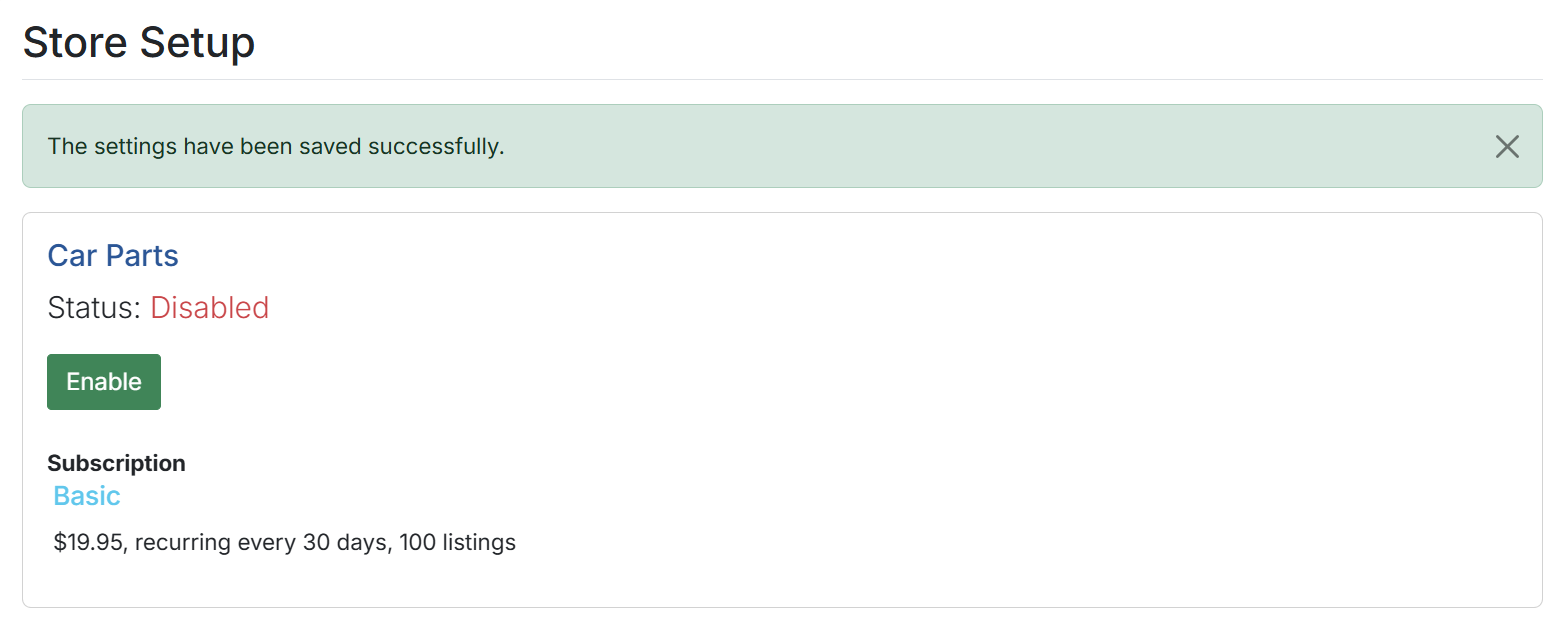
- Click the Save button to update your store settings.
- You will see a confirmation message once the settings are saved.
Your store will still appear as Disabled until you activate it.
5. Activating Your Store
To make your store public:
- Return to the Store Setup page.
- Click the Enable button.
If your subscription requires payment, you will be redirected to the checkout page to complete the transaction.
6. Processing Your Store Subscription Payment
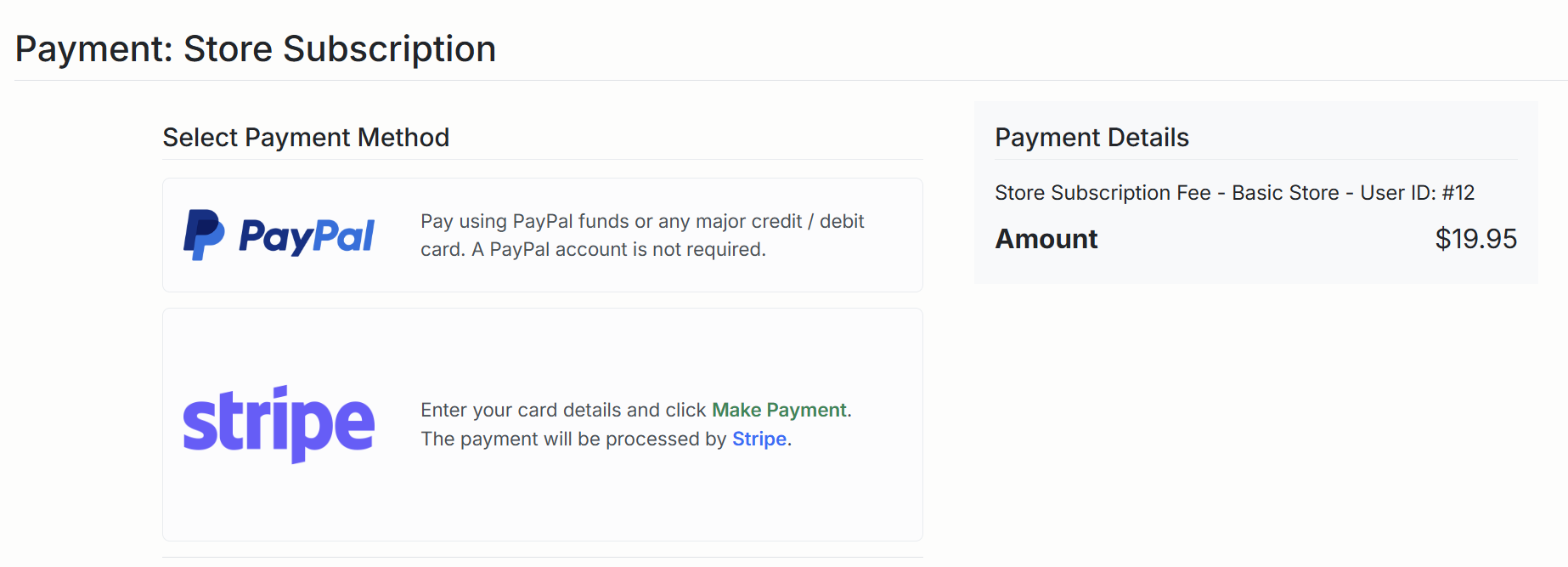
You will be prompted to choose a payment method:
- PayPal – Use your PayPal account or any major credit/debit card. A PayPal account is not required.
- Stripe – Enter your card details and complete the payment securely via Stripe.
After payment is successful, your subscription activates automatically and your store becomes enabled.
7. Managing Your Store
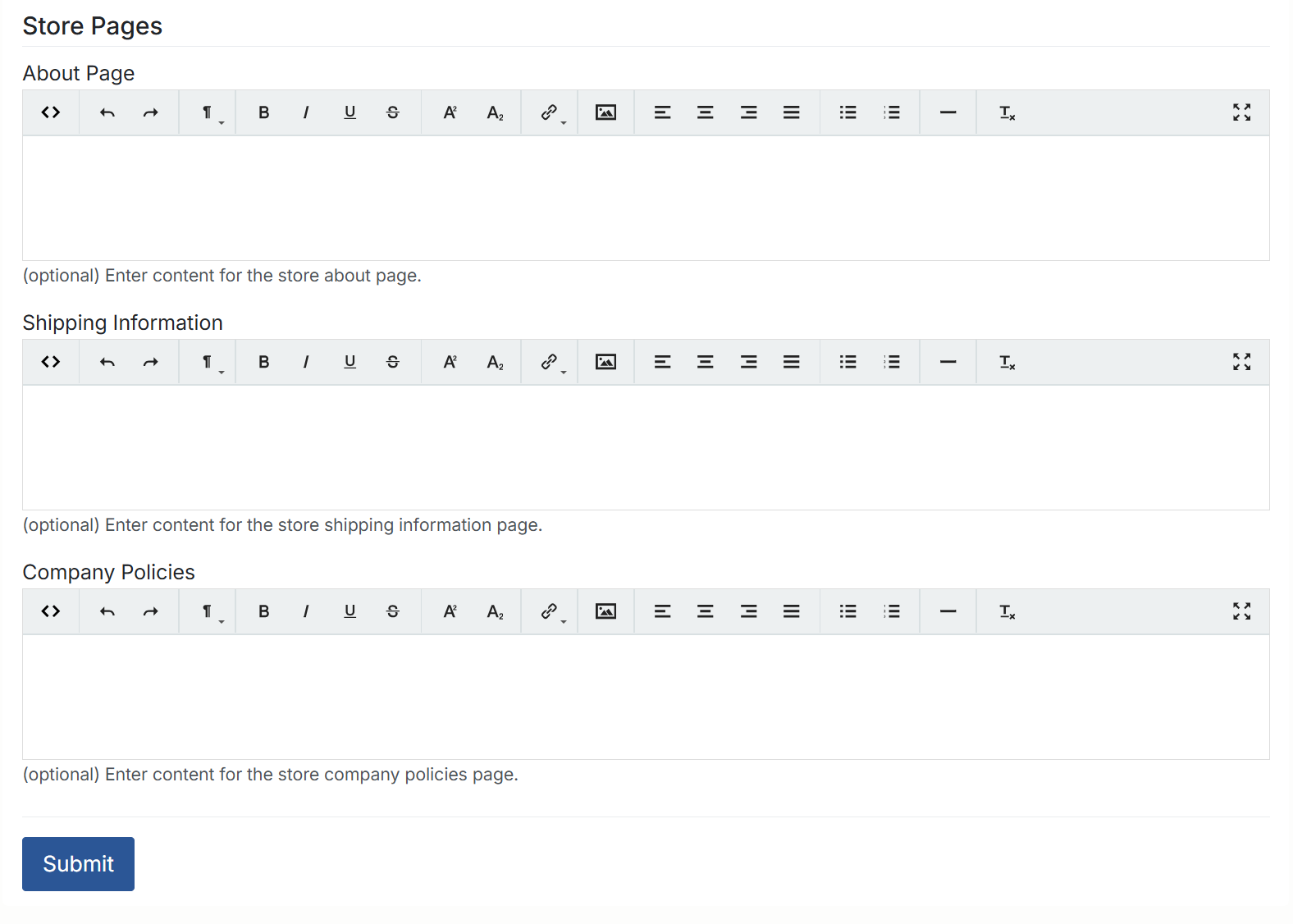
Once your store is active, you gain access to additional tools:
- Store Pages – Create custom pages such as “About Us,” “Policies,” or “Contact.”
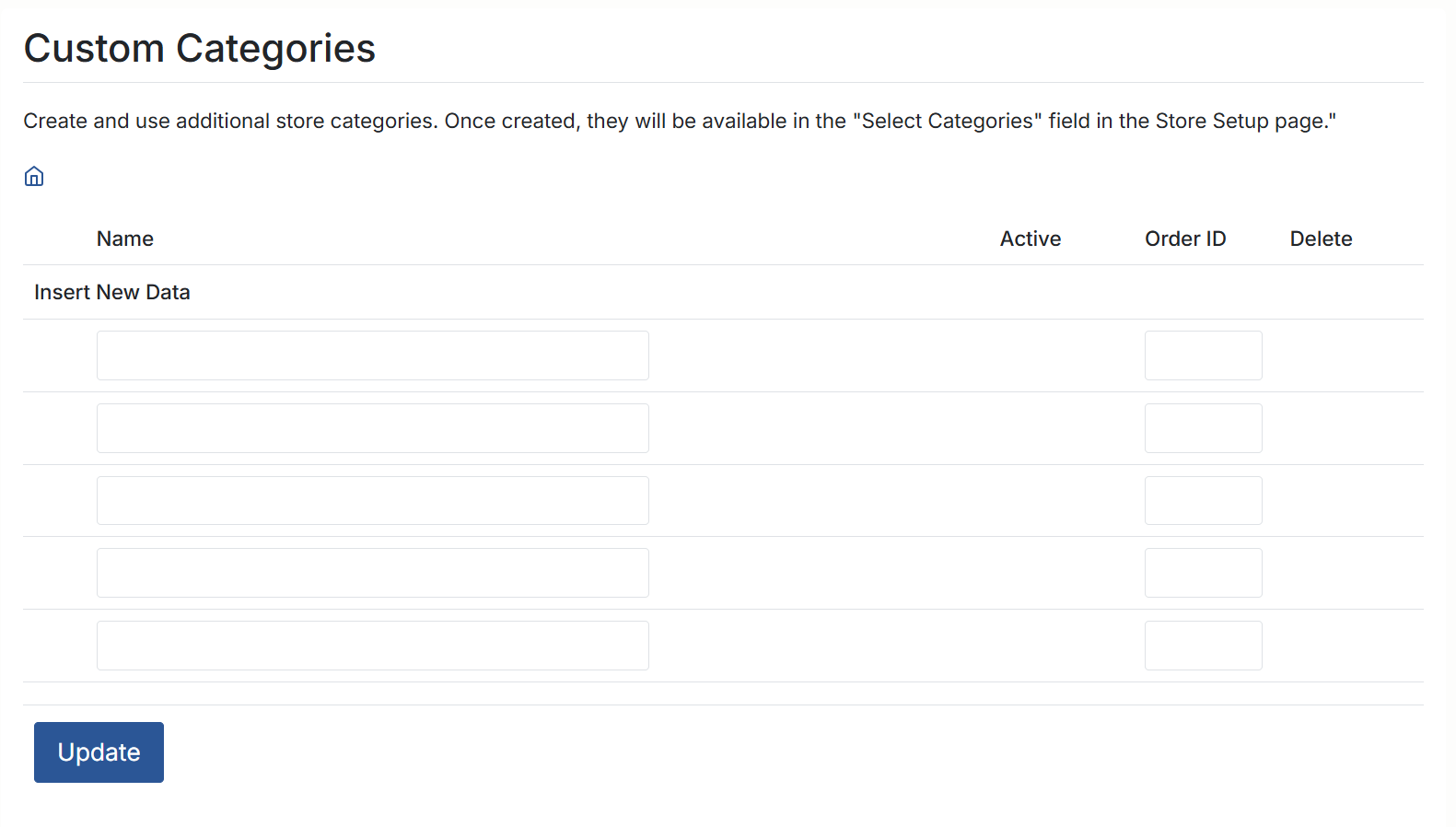
- Custom Categories – Organize your products into logical groups for better browsing.
Your store will now appear publicly on BuySellBig.com, and buyers can view all your listings in one organized location.
8. Renewing or Changing Your Store Plan
Store subscriptions renew automatically every 30 days unless canceled. You may upgrade or downgrade your plan anytime from the Store Setup page.
Some changes may require payment adjustments based on the site's billing configuration.
9. Disabling Your Store
If you need to temporarily or permanently close your store:
- Go to Store Setup.
- Click Disable.
Your store will no longer be visible to buyers, but your account and listings will remain accessible unless removed manually.
If you need further help with your store setup, feel free to contact BuySellBig.com support for assistance.