
Postage Setup
The Postage Setup section allows you to configure how shipping costs are calculated for your listings on BuySellBig.com. This includes selecting your postage calculation method, choosing your shipping carriers, setting measurement units, and configuring UPS API details when applicable. These settings apply to all items you sell unless overridden at the listing level.
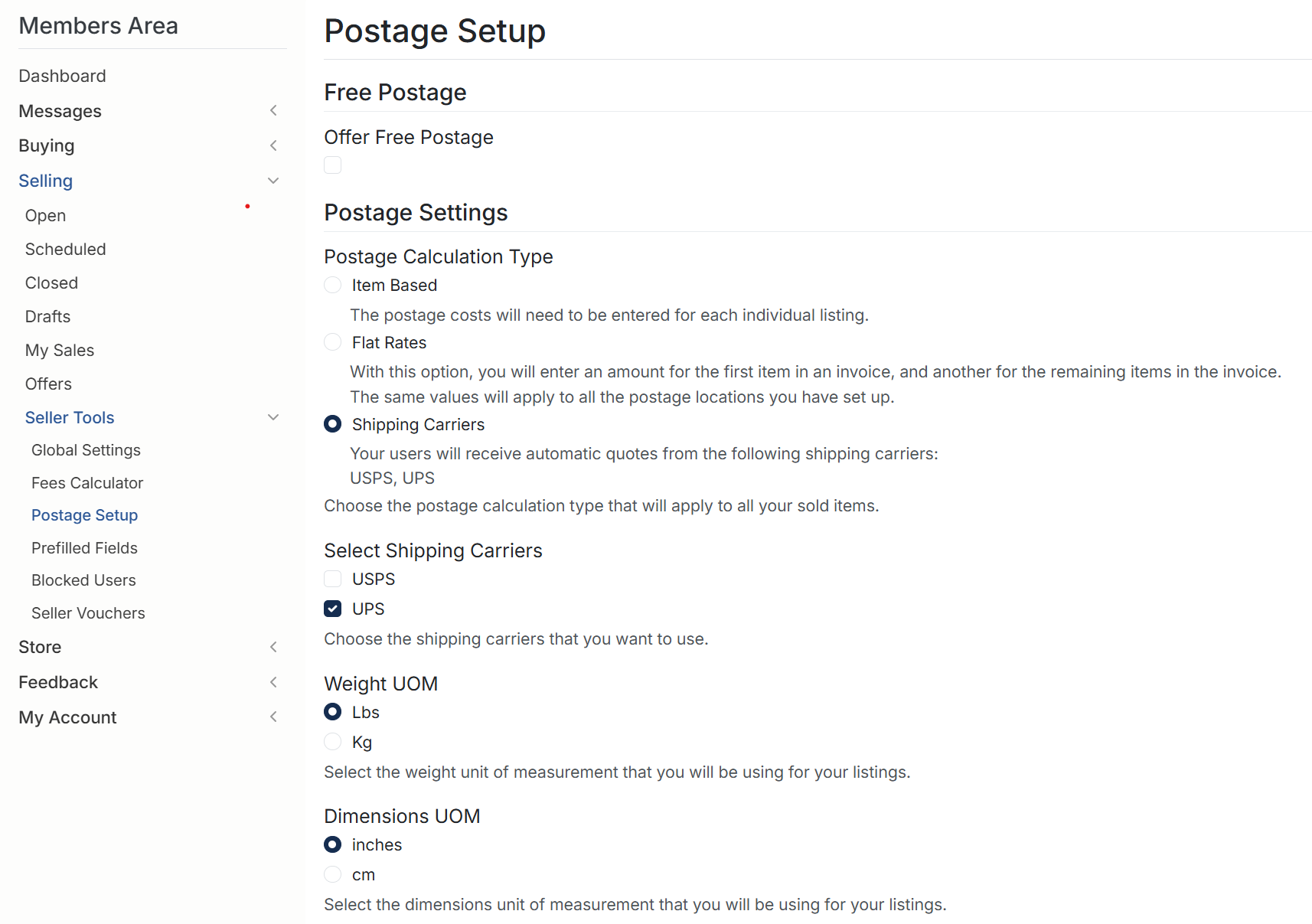
1. Free Postage Option
You can choose to offer free postage for all your listings by enabling the Offer Free Postage option.
- When enabled, buyers will not be charged any shipping fees for your items.
- This option is ideal for sellers who include postage costs in the product price or offer free shipping as a promotion.
2. Postage Calculation Type
Choose how shipping costs are calculated for your listings:
Item Based
- You define shipping costs manually for each individual listing.
- This option offers the most flexibility and allows different shipping fees based on item size, weight, or category.
Flat Rates
- Allows you to enter a fixed rate for the first item and a different rate for additional items in the same invoice.
- These flat rate values apply to all regions you have set up.
Shipping Carriers (Automatic Rates)
- Buyers receive live, automatic shipping quotes based on real carrier rates.
- Supported carriers include UPS and USPS, depending on your site’s configuration.
- Choose this option if you want the system to calculate exact shipping costs using dimensions, weight, and destination.
3. Selecting Shipping Carriers
When using carrier-based postage, you can enable:
- USPS
- UPS
Check the carriers you want to use. Only selected carriers will appear as available shipping options to buyers.
4. Weight Unit of Measurement (Weight UOM)
Choose the weight measurement you will use for your listings:
- Lbs
- Kg
This unit must match how you enter item weights when creating listings so that the system can calculate accurate shipping quotes.
5. Dimensions Unit of Measurement (Dimensions UOM)
Choose the measurement type for item length, width, and height:
- Inches
- Centimeters
Using the correct unit ensures the system calculates accurate shipping quotes when using carrier-based postage.
6. UPS API Settings
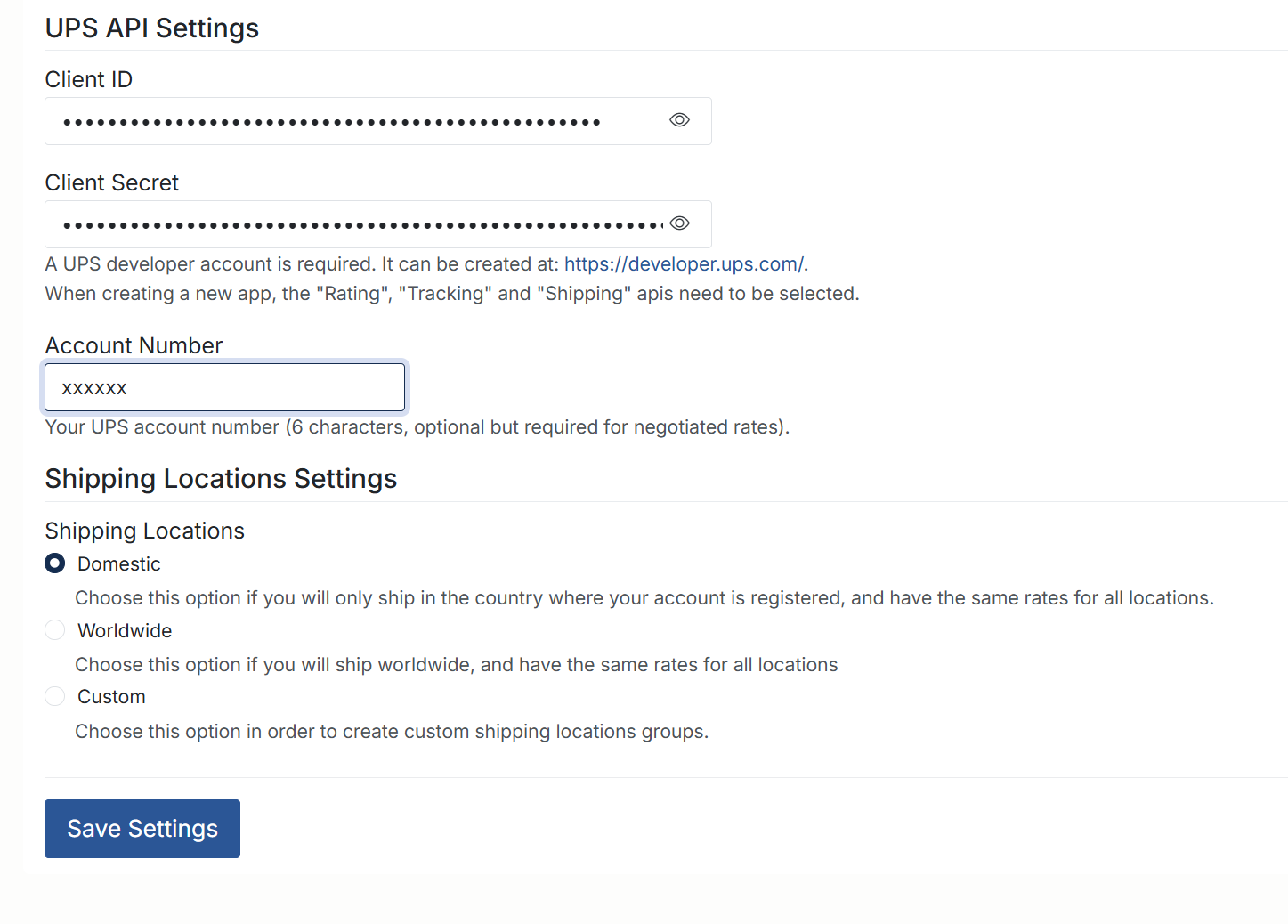
If you are using UPS for automatic shipping quotes, you must provide your UPS API credentials:
- Client ID – Your API Client ID generated through your UPS Developer account.
- Client Secret – Your API Client Secret. Both credentials are required for Rating, Tracking, and Shipping APIs.
- Account Number – Your UPS account number (6 characters). Optional for standard rates but required for negotiated rates.
To create a UPS developer account, visit: https://developer.ups.com/
Make sure your UPS app has the following APIs enabled:
- Rating
- Tracking
- Shipping
7. Shipping Location Settings
Choose which regions you ship to:
Domestic
Use this if you only ship within the country where your account is registered.
Worldwide
Select this if you ship globally and want a single rate structure for all countries.
Custom
Allows you to configure your own shipping location groups. This is useful if you want separate rates for regions such as North America, Europe, Asia, and others.
8. Saving Your Settings
Once you’ve configured your shipping carriers, measurement units, UPS API details, and location preferences, click Save Settings.
Your postage preferences will be applied automatically to all new listings unless overridden at the item level.