
Seller Vouchers
Seller Vouchers allow you to create special discount codes that buyers can apply to your listings. These vouchers are a powerful promotional tool, helping you increase visibility, reward repeat customers, offer limited-time deals, or move inventory quickly. As a seller, you fully control the voucher amount, expiration, usage limits, and which listings the voucher applies to.
1. Accessing Seller Vouchers
- Sign in to your BuySellBid.com account.
- From the left menu, go to Selling.
- Open Seller Tools.
- Click Seller Vouchers.
If you haven’t created any vouchers yet, the page will show “0 vouchers found.” You can search existing vouchers using the voucher code field or create a new one.
2. Creating a New Voucher
Click Create Voucher to open the voucher creation form. You will need to define the following fields:

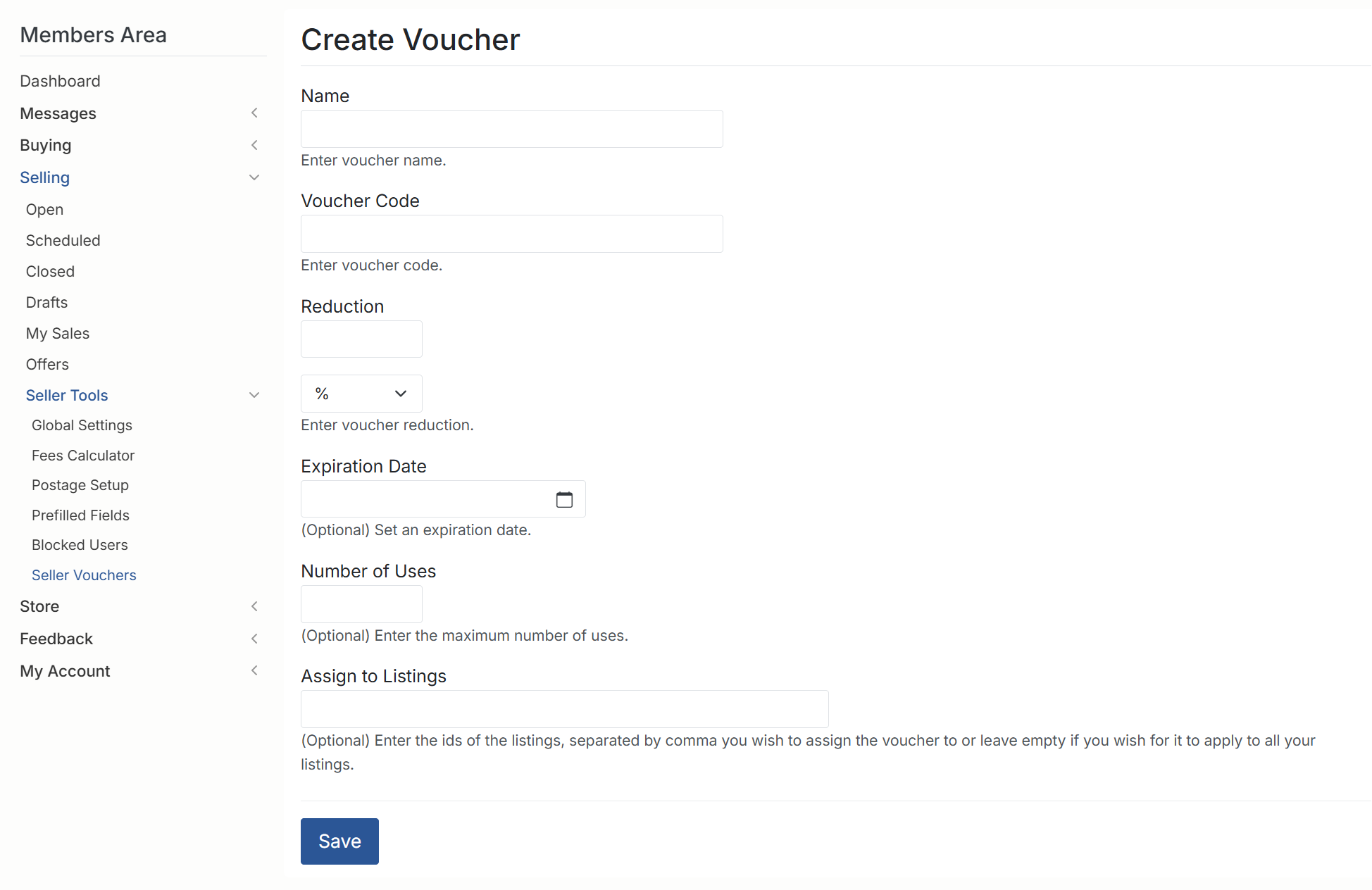
Voucher Name
- Enter a name for your voucher.
- This name is for your internal use and helps you identify the purpose of the voucher — for example, “Spring Sale” or “10OFF-RepeatCustomer”.
Voucher Code
- Enter the code buyers will use at checkout.
- Make it simple and easy to remember, such as “SAVE10” or “FREESHIP”.
- The code must be unique and cannot match any existing voucher code.
Reduction Type and Amount
This determines how the discount works.
- Reduction: Enter the discount value (for example, “10”).
- Reduction Type: Choose whether the discount is applied as a percentage (%) or a fixed amount ($).
Examples:
- 10% off
- $5 off
- 25% discount
Make sure the reduction amount makes sense for your item prices.
Expiration Date (Optional)
- Set an optional expiration date for the voucher.
- After this date, the voucher can no longer be used by buyers.
- If you want the voucher to run indefinitely, leave this field empty.
Number of Uses (Optional)
- Specify how many times the voucher can be used before it becomes inactive.
Examples:
- 1 – a one-time promotional code
- 50 – a limited promotion
- Leave empty for unlimited uses
This allows you to control the reach of your discount.
Assign to Listings (Optional)
- You can restrict the voucher to certain listings only.
- Enter the Listing IDs, separated by commas.
Examples:
142, 157, 201- Leave blank to apply the voucher to all your listings.
Assigning vouchers to specific listings is useful for targeted promotions, category-specific sales, or clearance events.
3. Saving and Managing Vouchers
After entering your voucher details, click Save.
Once saved:
- The voucher will appear in your vouchers list.
- You can view or search vouchers by code.
- Buyers can apply active vouchers during checkout if the code and listing conditions match.
- You can edit or delete vouchers depending on the site’s seller policies.
Inactive, expired, or fully used vouchers will no longer function at checkout.
4. Tips for Using Seller Vouchers Effectively
- Use percentage discounts for higher-value items.
- Use fixed-amount discounts to clear small or low-price inventory.
- Create short expiry dates to encourage quicker purchases.
- Promote voucher codes in your store, listings, or social media.
- Monitor usage to see which promotions work best for your audience.